
Settings
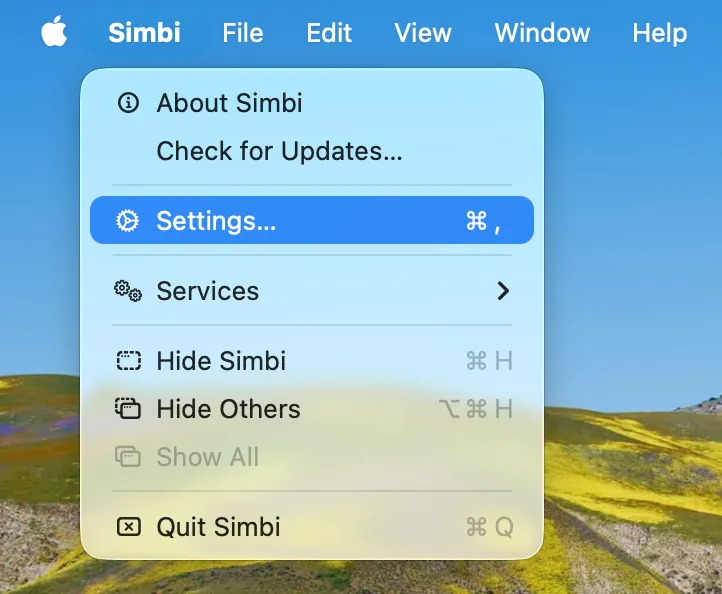
Open the Simbi menu in the macOS menu bar and choose Settings, or press ⌘,. The Settings window has three tabs: General, Codex, and Recording. Most changes are saved as soon as you make them.
General
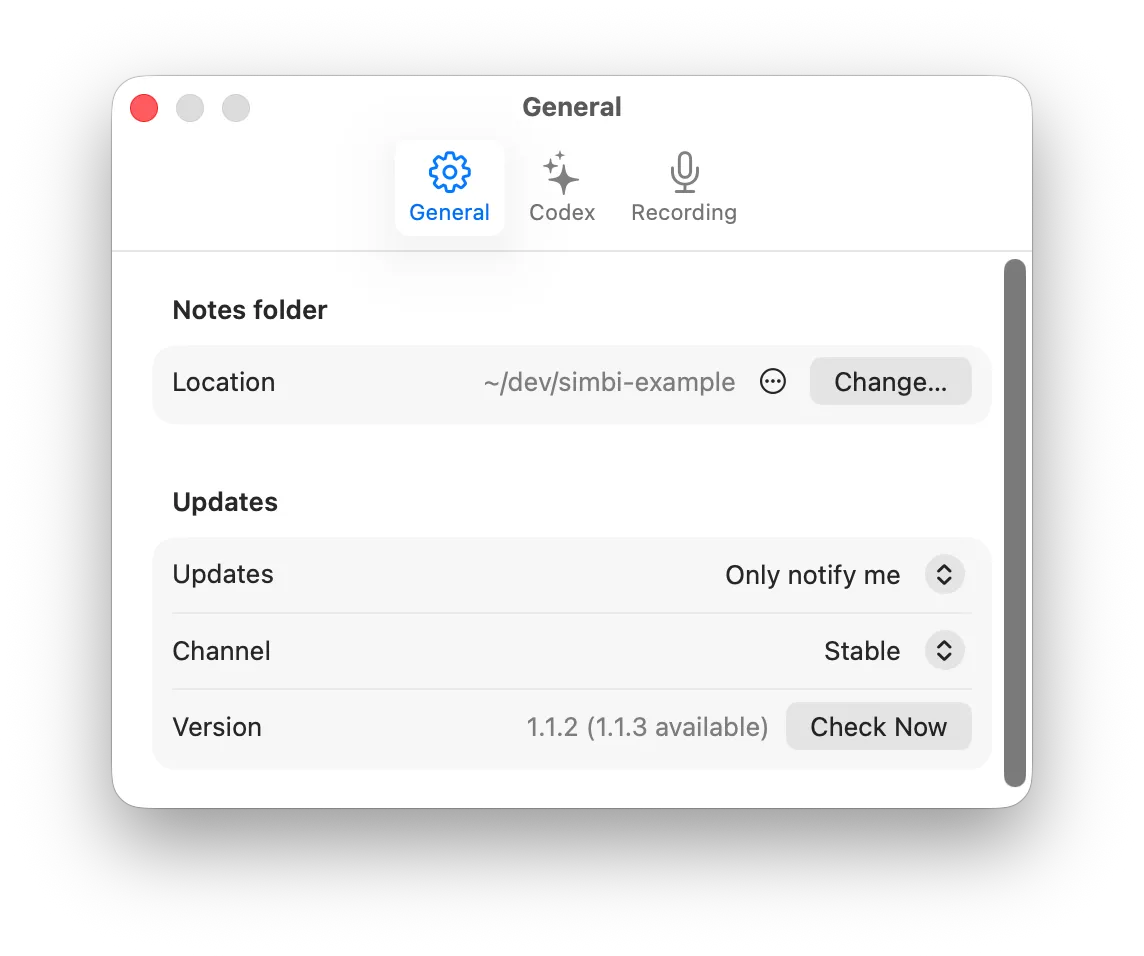
Section titled “General”The General tab controls where Simbi keeps your notes and how the app handles updates.
Notes folder
Section titled “Notes folder”Click Change to choose a different folder for your Simbi library. Simbi asks to relaunch before switching to the new location. Changing the location does not move your existing notes, so copy or move them yourself if you want them to appear in the new library.
The menu beside the current location can reveal the folder in Finder. If you previously chose a custom location, it can also reset Simbi to its default notes folder.
Updates
Section titled “Updates”Choose how Simbi tells you about new versions:
- Install automatically downloads updates and installs them when Simbi quits.
- Only notify me reports new versions and lets you decide when to install.
- Never check disables automatic checks. You can still check manually.
The Stable channel receives regular releases. Choose Beta if you also want prerelease updates. The version row shows the installed version and any available update. Click Check Now to check immediately.
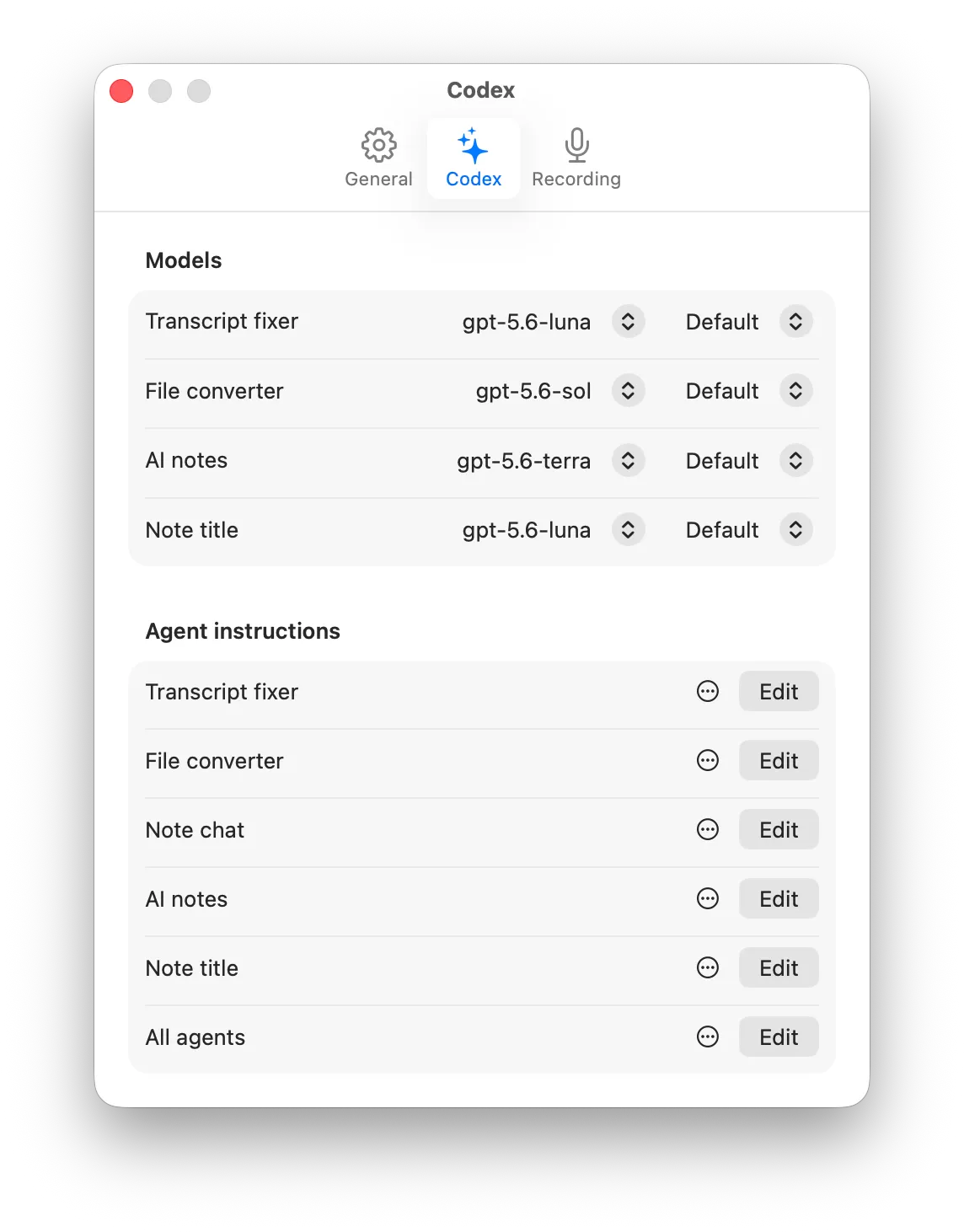
The Codex tab controls Simbi’s AI features. You can enable or disable the transcript fixer, AI Notes, and automatic note titles near the top of the tab.
Models
Section titled “Models”Choose a model and reasoning effort independently for the transcript fixer, file converter, AI Notes, and note title generator. Default follows the current Codex default for that choice.
This lets you use a faster model for routine transcript cleanup and a stronger model for summaries or document conversion. New work uses the updated choice.
Agent instructions
Section titled “Agent instructions”Every Codex-powered feature has its own instructions. Click Edit to open those instructions in a Markdown editor.
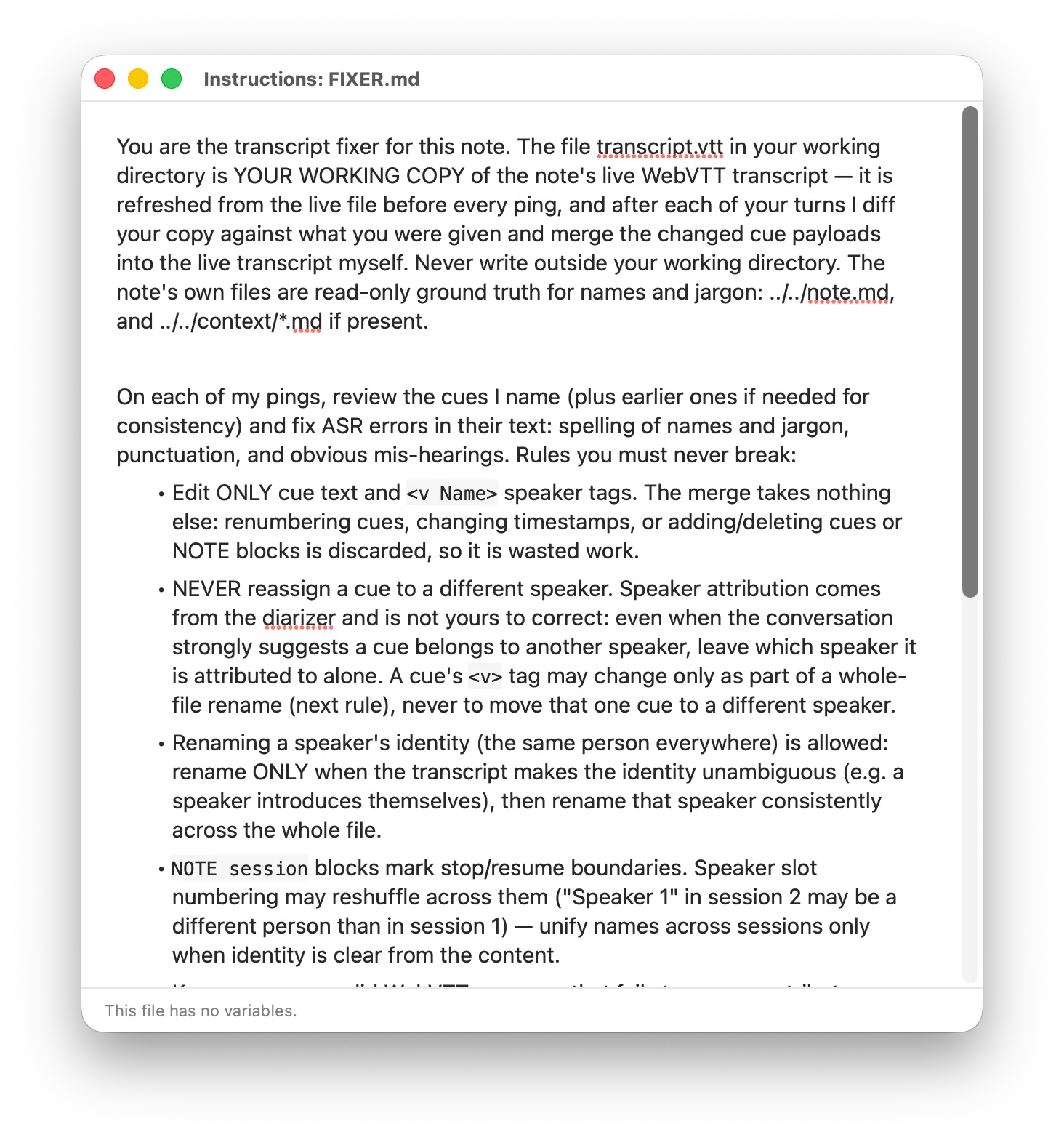
Editing here changes the same Markdown instruction file stored at the root of your notes folder. The editor saves automatically. Your changes apply the next time the corresponding feature starts.
Use All agents for rules that should apply across every Codex feature. For example, you could specify preferred terminology, writing conventions, or general boundaries for working with your notes.
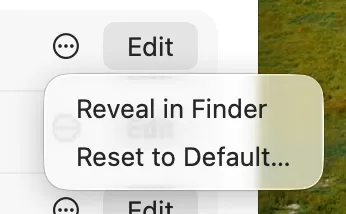
Click the ••• menu beside an instruction to reveal its Markdown file in Finder or reset it to Simbi’s built-in default. Resetting replaces your edits, so Simbi asks for confirmation first.
See AI behavior is defined at the home root for the purpose of each instruction file.
Recording
Section titled “Recording”The Recording tab chooses the audio sources used for new recordings.
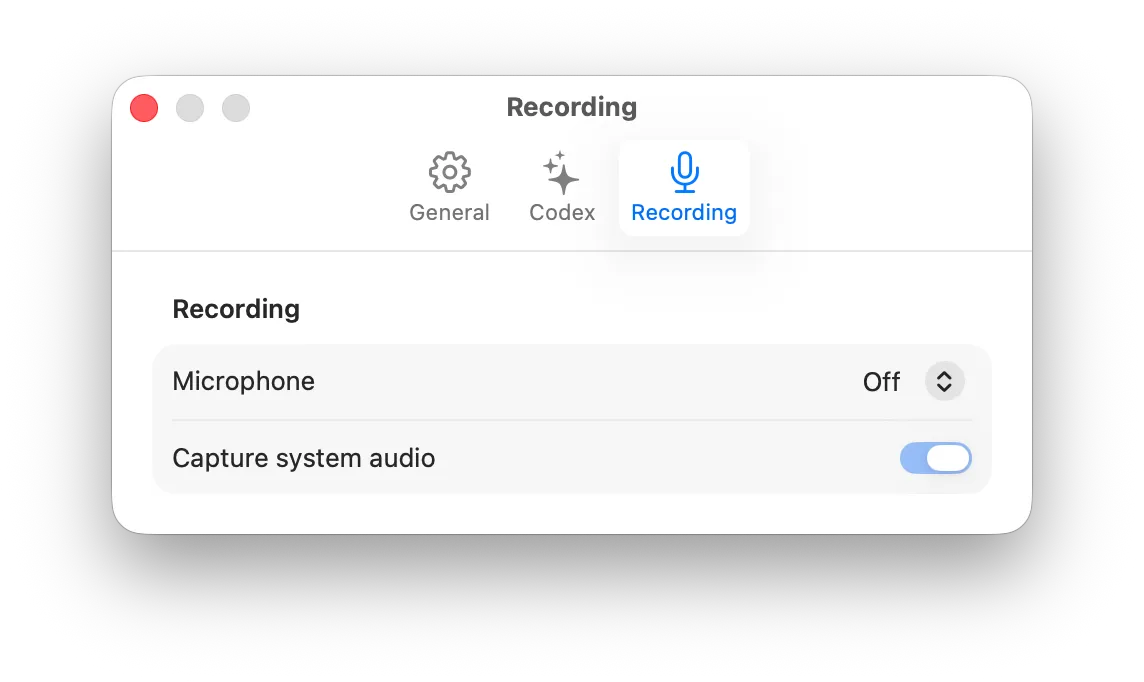
The Microphone menu offers:
- Off for system-audio-only recording.
- System default to follow the microphone selected by macOS.
- Any connected microphone as a specific device.
Turn on Capture system audio to include sound played by your Mac, such as a video call or presentation. Turn it off for microphone-only recording. You can also record both sources together.
Simbi always keeps at least one source enabled. Choosing Off for the microphone therefore turns on system audio automatically.