
How Simbi stores notes
Simbi stores everything as ordinary files and folders. There is no separate
database or proprietary note format. By default, the home folder is ~/Simbi,
but you can choose another folder in Settings.
The sidebar is a folder tree
Section titled “The sidebar is a folder tree”Simbi scans the home folder and mirrors its directory structure in the sidebar.
A folder that contains note.md is a note folder. It appears as a leaf in
the sidebar, so Simbi does not show its internal files and folders as children.
The file is named note.md, singular. Folders without note.md are
organizational folders and can contain more folders or notes. Note folders
cannot be nested inside other note folders.
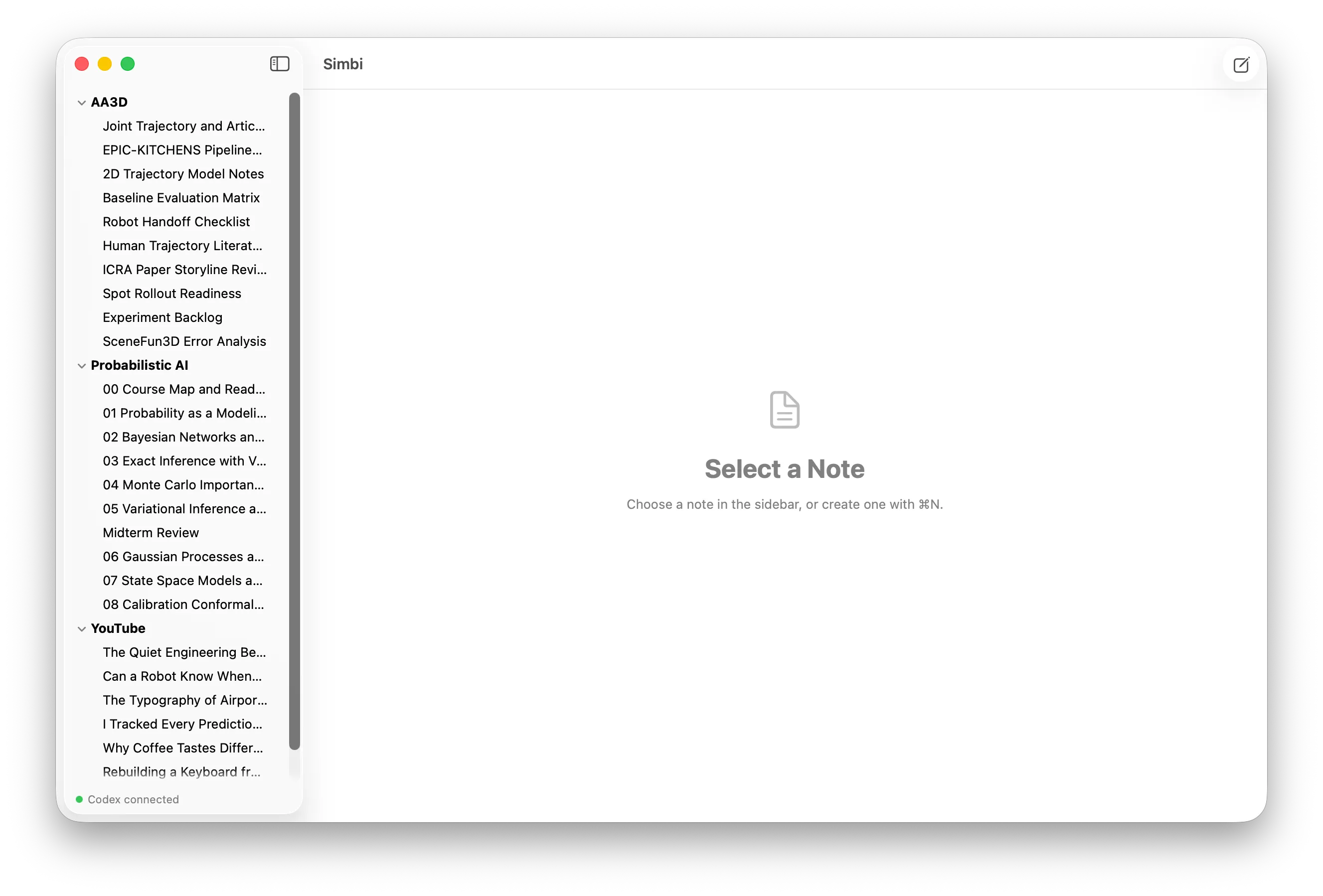
The Simbi sidebar shows organizational folders and note leaves.
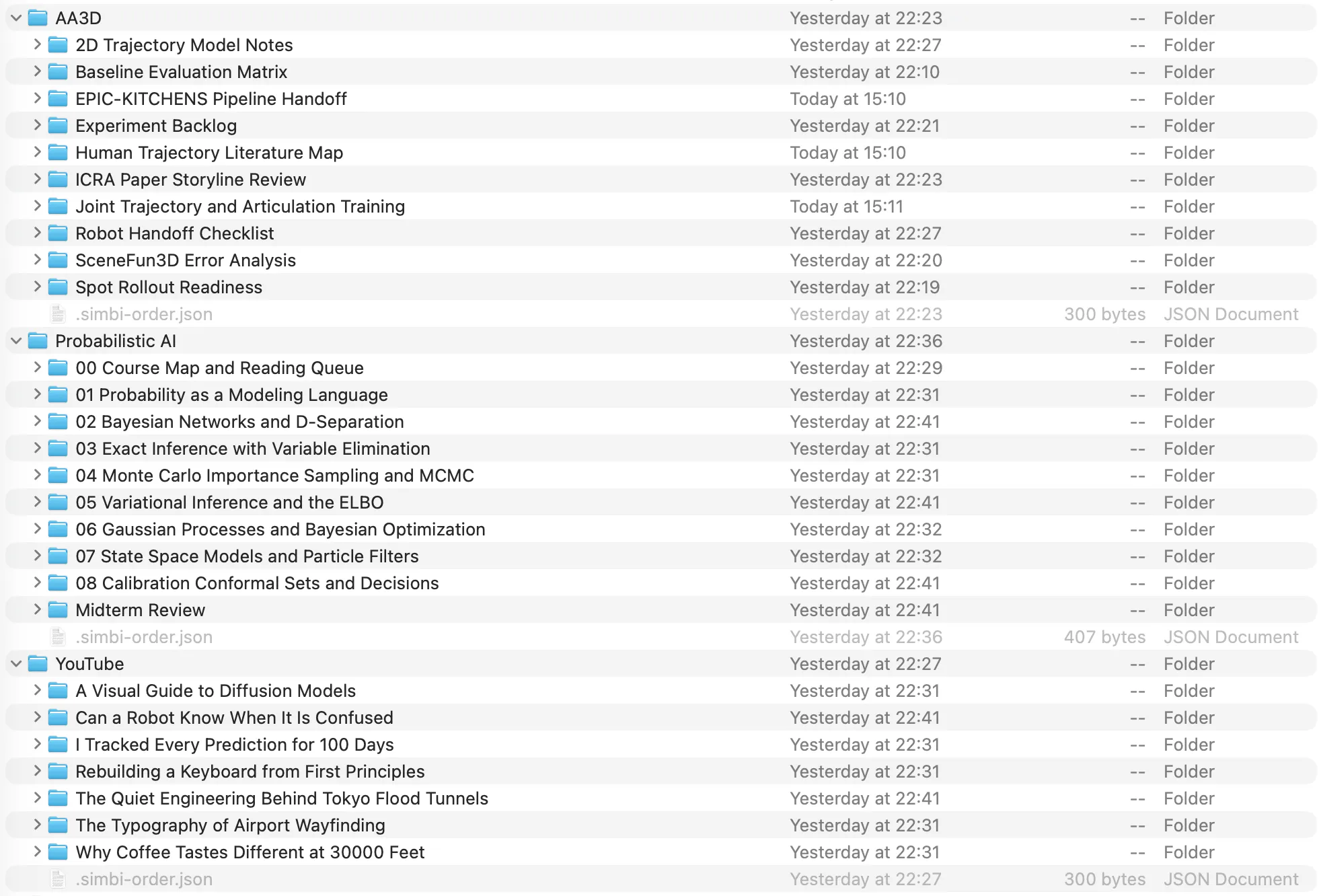
The same structure in Finder. Each note shown in Simbi is a real folder on disk.
View an example folder tree
For example, the AA3D section in Simbi corresponds to this folder structure:
Simbi/└── AA3D/ ├── Joint Trajectory and Articulation Training/ │ └── note.md ├── Baseline Evaluation Matrix/ │ └── note.md └── Robot Handoff Checklist/ └── note.mdRenaming or moving a note changes the real folder on disk. Changes made in Finder are also picked up by Simbi.
Ordering with .simbi-order.json
Section titled “Ordering with .simbi-order.json”Names alone do not determine the sidebar order. The home folder and any
organizational folder can contain a hidden .simbi-order.json file. Simbi
writes this file when you reorder items in the sidebar.
This means you can arrange notes however you want without adding numbers to their names. Each folder keeps its own order, and dragging rows in Simbi updates it automatically.
View the order file format and fallback rules
The format is a JSON array containing exact child names in display order:
[ "00 Course Map and Reading Queue", "01 Probability as a Modeling Language", "Midterm Review", "02 Bayesian Networks and D-Separation"]This lets Midterm Review appear between two numbered notes without renaming
its folder. Each folder has its own order file, so reordering one section does
not affect another.
The file is optional:
- With no order file, folders and notes appear before loose files, with each group sorted alphabetically.
- Listed names appear first in the stored order.
- Unlisted children follow in their normal default order.
- Names that no longer exist are ignored.
- New notes are placed at the top of their parent folder’s order.
You normally do not need to edit this file yourself.
Inside a note folder
Section titled “Inside a note folder”A note folder can grow into the following structure:
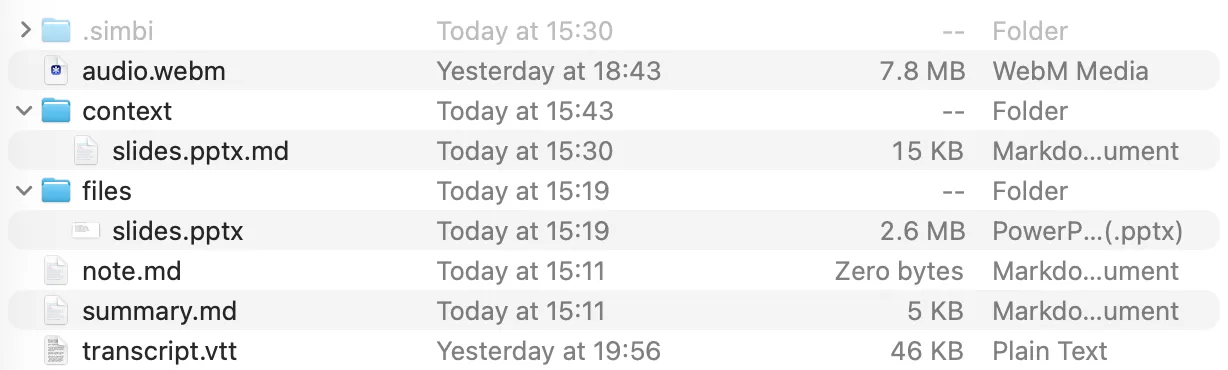
Only note.md is required. Simbi creates the other entries when their features
are used.
Your writing, recording, transcript, and AI Notes live together in this folder. Attachments have separate folders for the originals and the versions Codex can read. A hidden folder holds Simbi’s recovery and processing state.
View every file in a note folder
| Entry | Purpose |
|---|---|
note.md |
Your own Markdown note. Its presence also tells Simbi that this folder is a note. |
audio.webm |
The note’s WebM/Opus recording. Multiple recording sessions are appended to one continuous file. |
transcript.vtt |
A WebVTT transcript with cue timing and speaker labels. Simbi updates it as transcription completes. |
summary.md |
AI Notes generated from note.md, the transcript, and converted context. Its presence makes the AI Notes tab appear. |
files/ |
Unmodified copies of files you attach to the note. |
context/ |
Markdown versions of attachments that Codex can read and use as context. |
.simbi/ |
Private per-note bookkeeping for recording recovery, conversion jobs, and the transcript fixer. |
Because these are plain files, you can inspect, back up, search, or version them
with normal tools. Avoid manually editing .simbi/, which is app-managed state.
View the WebVTT transcript format
WebVTT is a standard text format for timed captions and transcripts. A small Simbi transcript looks like this:
WEBVTT
NOTE simbi note="Weekly Sync"
NOTE session 1 start=2026-08-19T10:00:00+09:00 offset=00:00:00.000
100:00:02.400 --> 00:00:05.100<v Maya>Let's ship the beta on Friday.
200:00:05.300 --> 00:00:07.000<v Leo>I'll finish the release notes.
NOTE session 1 end=2026-08-19T10:00:08+09:00 offset=00:00:08.000
WEBVTT is the required file header. Each cue has a numeric identifier, a
start and end timestamp, and its text. The <v Maya> voice tag identifies the
speaker.
Simbi uses valid WebVTT NOTE blocks for extra metadata. Session blocks mark
recording stop and resume boundaries. A NOTE gap block can mark audio that
contains no transcript cue, and a NOTE continuation block can identify a cue
that continues from an earlier segment. These blocks do not change the standard
cue format.
Attachments: files/ and context/
Section titled “Attachments: files/ and context/”When you add an attachment, Simbi keeps an unmodified copy in files/. The
source file is not moved or changed.
Simbi also creates a readable Markdown version in context/. This lets the
transcript fixer, AI Notes, title generator, and note chat use the attachment
while keeping the original available for opening or sharing.
Attachment naming and conversion details
An existing attachment is never overwritten. If a name is already taken, Simbi
chooses a name such as report 2.pdf. The original and its readable Markdown
counterpart stay paired by name:
files/slides.pptxcontext/slides.pptx.mdThe original remains available for opening or sharing. Its converted Markdown provides readable text to the transcript fixer, AI Notes, note title generator, and note chat. Conversions preserve the source content rather than replacing the original with a summary.
Conversion status and its Codex thread ID are stored in the note’s
.simbi/state.json. If the Markdown counterpart is missing, Simbi can dispatch
the conversion again.
Inside a note’s .simbi/ folder
Section titled “Inside a note’s .simbi/ folder”The hidden .simbi/ folder holds private state used for recovery and background
processing. Simbi manages it automatically, so you should not need to open or
edit it.
View the internal folder contents
It is created as needed and can contain:
.simbi/├── state.json├── pending/│ ├── 42.webm│ └── 42.json├── failed/└── fixer-worktree/ └── transcript.vttstate.jsontracks the next transcript cue number, recording sessions, audio duration, file-conversion jobs, and the transcript fixer’s Codex thread and instruction version.pending/is a disk-backed transcription queue. Each pending cue has a small WebM audio segment and a JSON sidecar with its timing and speaker metadata. Simbi reloads this queue after a restart.failed/keeps segments that exhausted their transcription retries. Simbi writes[inaudible]into the transcript so the timeline can continue.fixer-worktree/holds a temporary copy oftranscript.vttfor the transcript fixer. Simbi merges accepted speaker and text corrections into the live transcript while preserving cue numbers and timestamps.
This is different from the .simbi/ folder at the home root, which stores
app-wide settings in settings.json.
AI behavior is defined at the home root
Section titled “AI behavior is defined at the home root”Simbi creates a set of Markdown instruction files in the home folder. These files define how each Codex-powered feature behaves. Simbi hides them from the note list, but they remain visible in Finder:
| File | Controls |
|---|---|
AGENTS.md |
Shared layout knowledge and safety rules for agents working in the Simbi home. |
FIXER.md |
How the transcript fixer corrects recognition errors and speaker names. |
INGEST.md |
How attached files are converted into faithful Markdown context. |
CHAT.md |
The opening instructions and available context for note chat. |
SUMMARY.md |
How AI Notes combine your note, transcript, and converted context. |
TITLE.md |
How a default note name is replaced with a short content-based title. |
You can edit these files from the Agent instructions section in Settings or open them directly in a text editor. Simbi creates defaults on first launch but does not overwrite your edits. Changes apply the next time the corresponding feature runs.
Instruction placeholders and fallback behavior
Changing FIXER.md causes Simbi to start a new fixer thread instead of resuming
one created with older instructions.
Two instruction files support placeholders that Simbi fills at runtime:
INGEST.md:{{ file }}and{{ anydoc }}CHAT.md:{{ note_path }}and{{ files }}
Unknown placeholders are left visible instead of being silently removed. A missing or blank instruction file falls back to Simbi’s built-in default, and Settings can reset any file to that default.