
After transcription
When a recording stops, Simbi finishes the remaining transcript and then, when enabled, creates AI Notes and proposes a title for a still-untitled note.
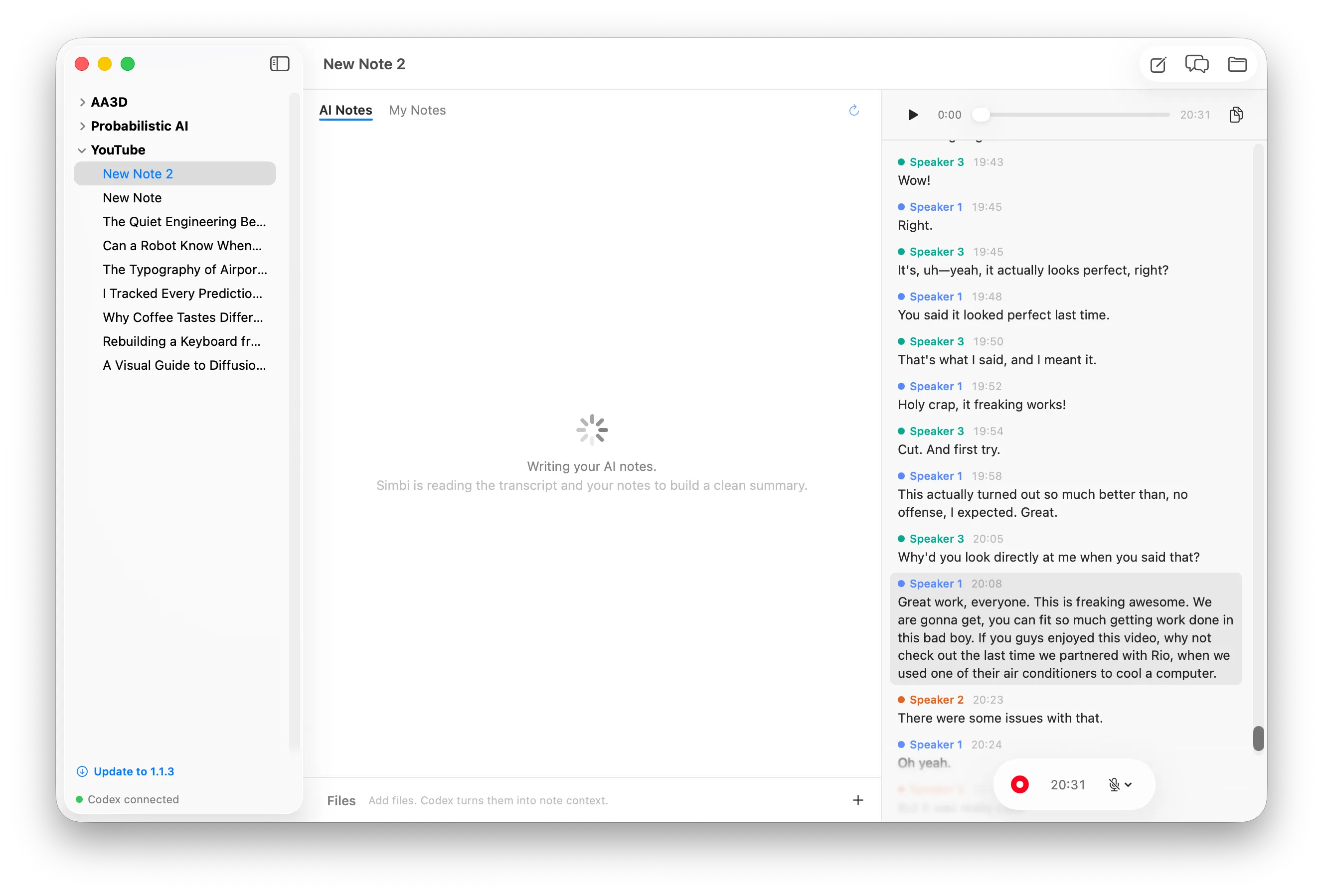
These features run only after recording has stopped, when the transcript has content and Codex is connected.
AI Notes
Section titled “AI Notes”The first generation selects the AI Notes tab and displays a progress state. The transcript remains available in the right pane while the summary is being written.
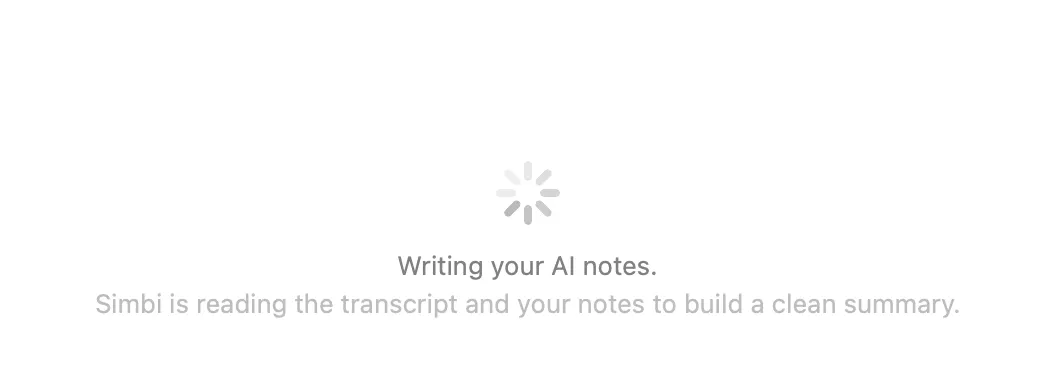
Simbi reads your notes, transcript, and converted attachments. If AI Notes already exist, Simbi also reads them so a later recording can be woven into the existing summary.
The result is a concise note organized for the kind of recording Simbi finds, such as a meeting, lecture, interview, presentation, or open discussion. It removes conversational filler while preserving the substance of your notes.
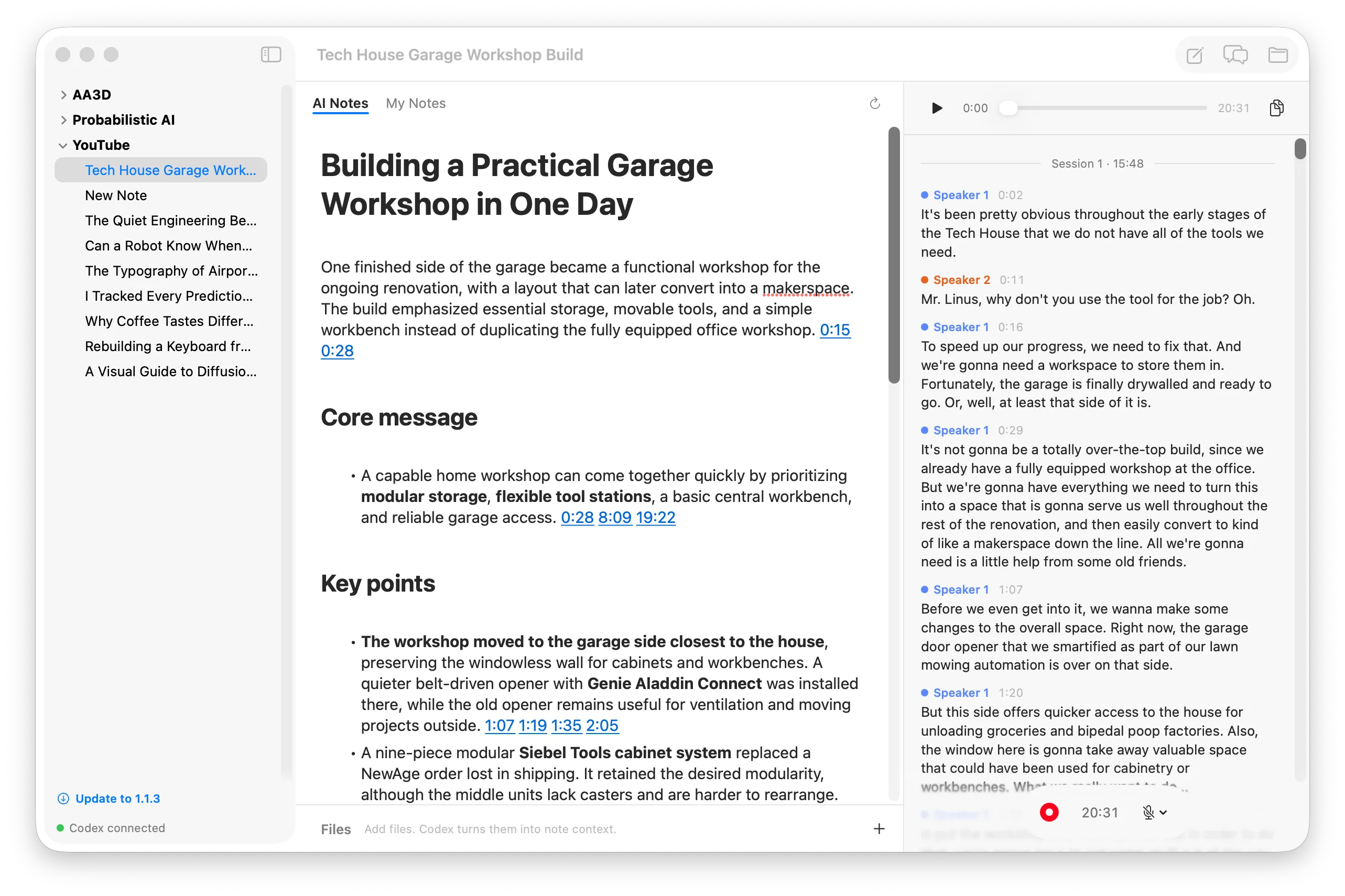
You can edit AI Notes directly. After a later recording, Simbi updates them while preserving your wording, additions, and ordering where possible.
The button rebuilds AI Notes from the source material. This replaces the current AI Notes, so any manual edits are discarded.
You can customize this behavior by editing SUMMARY.md at the Simbi home root.
See AI behavior is defined at the home root.
Timestamp citations
Section titled “Timestamp citations”Every point derived from the transcript ends with one or more timestamp citations.
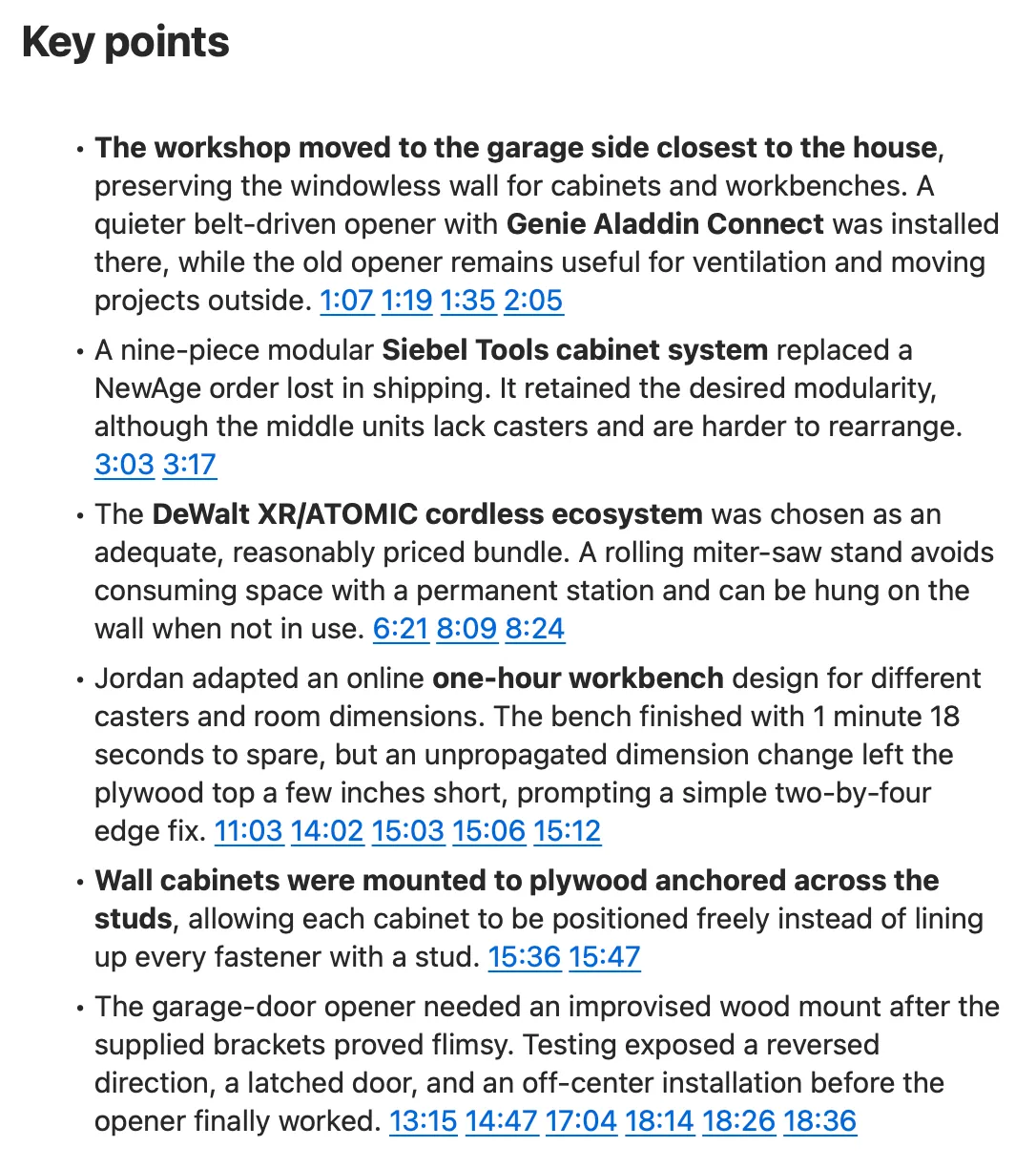
Each blue timestamp is clickable.
Clicking a citation does two things:
- Playback starts at that exact point in the audio.
- The corresponding transcript line scrolls into view and receives a brief speaker-colored highlight.
Automatic note titles
Section titled “Automatic note titles”Simbi proposes a title only when the note still has a default name such as
New Note or New Note 2. A note that you have already named is never renamed
automatically.
It bases the title on your notes, transcript, and converted attachments. The
default policy chooses a short, specific title based on the subject rather than
the recording format. If that title already exists, Simbi adds a number, such
as Project Review 2.
Simbi applies the title after AI Notes and transcript cleanup finish. If you rename the note first, your name wins.
The title policy comes from TITLE.md at the Simbi home root and can be edited
independently of SUMMARY.md.
Transcript playback
Section titled “Transcript playback”When a note has recorded audio, the top of the transcript pane becomes a player. It contains play or pause, the current time, a scrubber, the total duration, and the copy-transcript button.
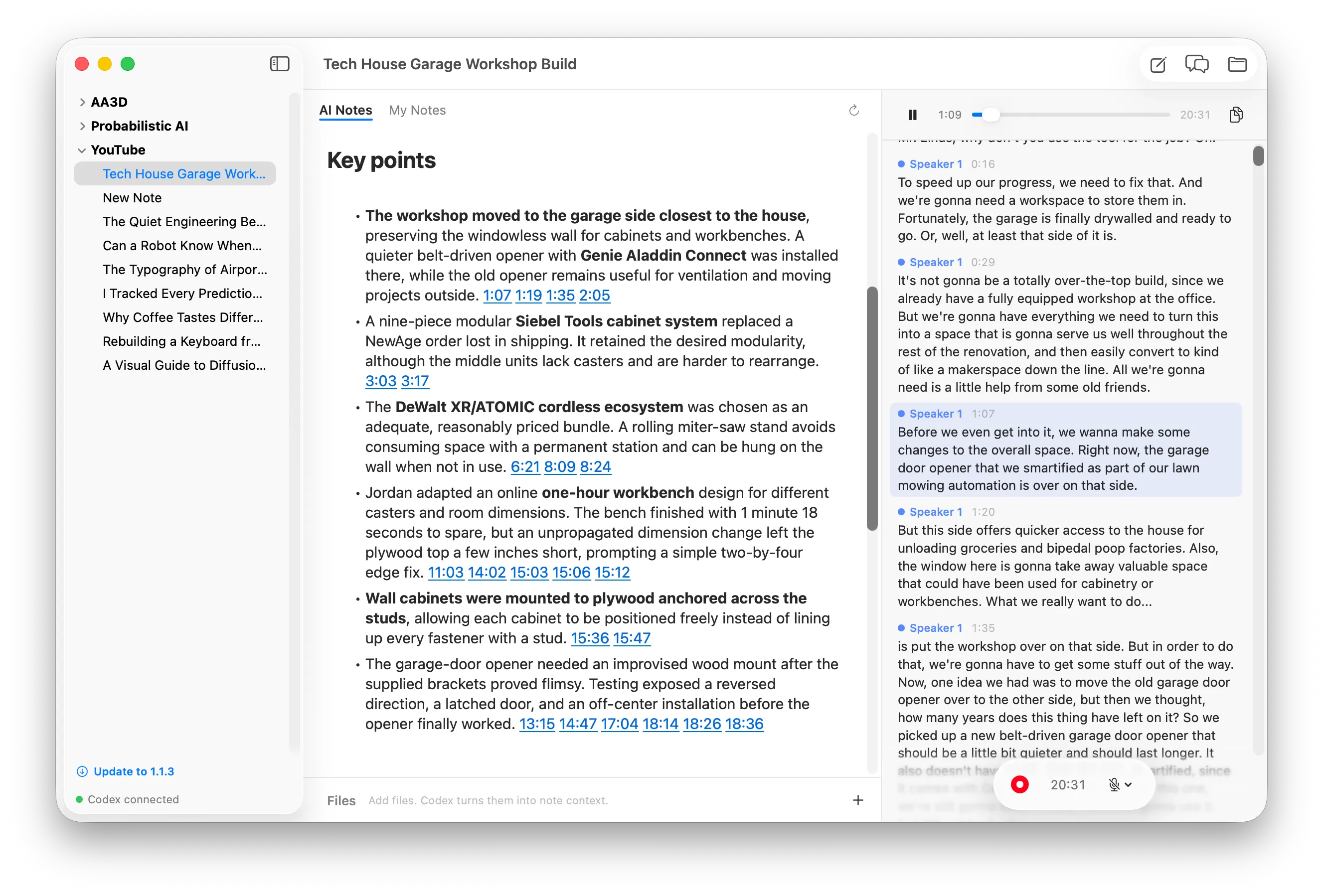
As audio plays, the matching transcript line receives a soft tint in its speaker color. The transcript automatically scrolls to keep that line in view.
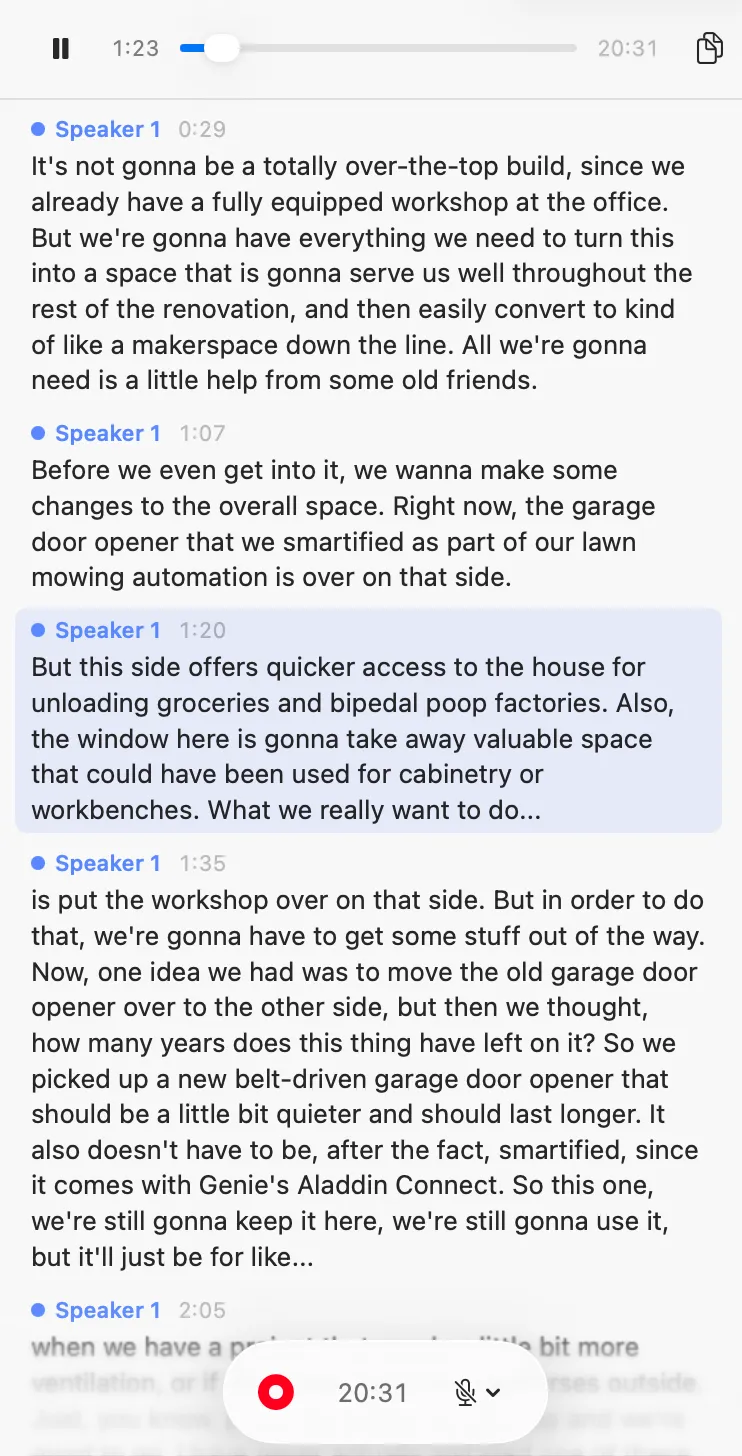
Play from a transcript cue
Section titled “Play from a transcript cue”Hovering a transcript row gives it a neutral gray background to show that the row is interactive.

Click either a line’s timestamp or its text to start playing from that moment. Once playback reaches it, the row changes to its speaker-colored active tint.

Playback is unavailable while recording.
Copy the complete WebVTT transcript
Section titled “Copy the complete WebVTT transcript”Click the button at the top right of the player to copy the complete transcript as WebVTT. The copy includes the latest transcription results and transcript-fixer edits.
The copied text includes timestamps and speaker labels, not just the words visible in the pane. The button briefly becomes a checkmark after a successful copy.